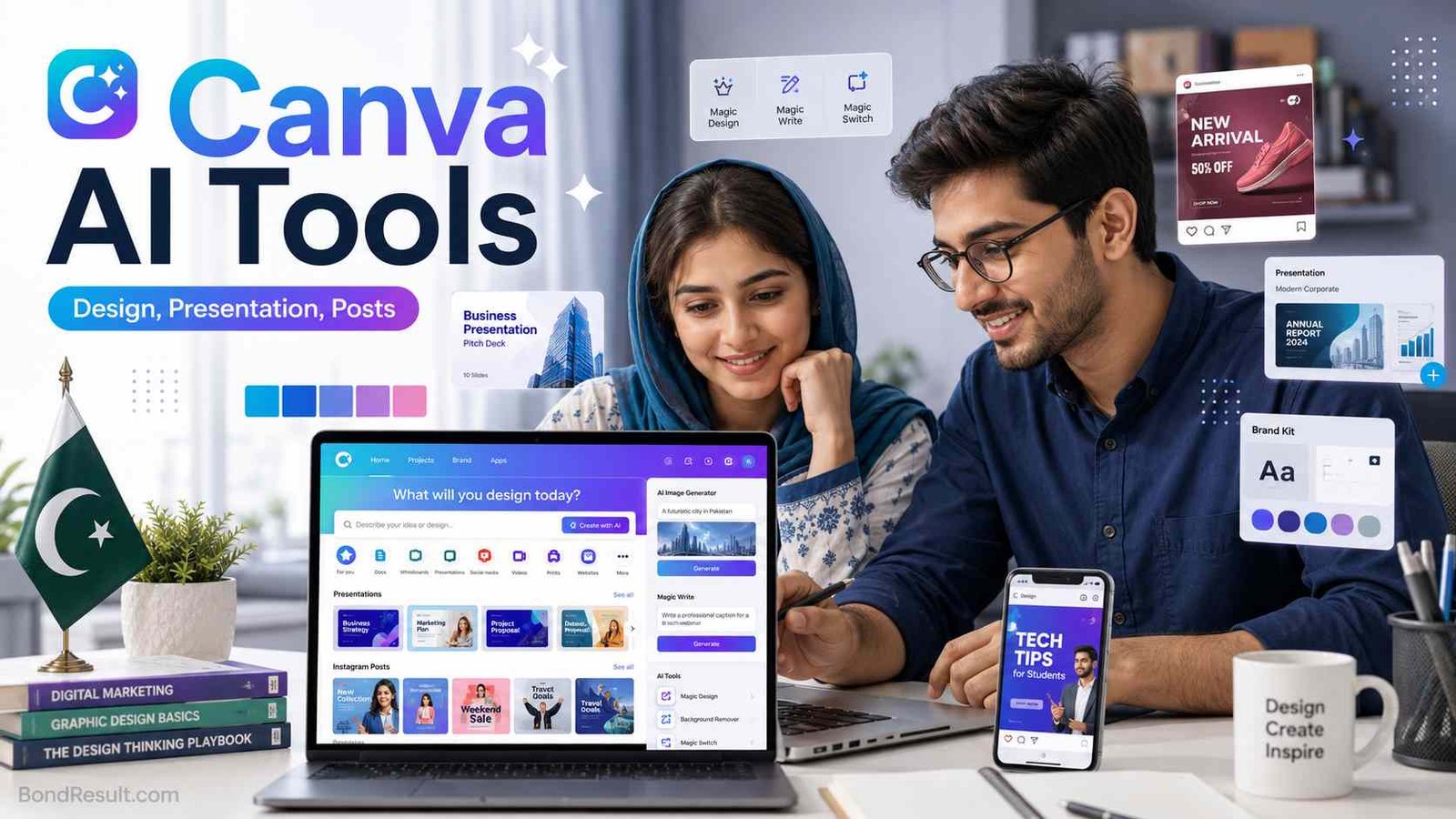
 Have you ever opened Canva and thought, “Yaar, design banana to easy hai, but idea kahan se laun?” That is exactly where Canva AI Tools help. These tools can make designs, write text, create presentations, generate images, remove backgrounds, edit photos, and even help you prepare social media posts without learning heavy software like Photoshop.
For Pakistani students, freelancers, teachers, YouTubers, shop owners, and job seekers, Canva has become almost a daily-use tool. Someone wants to make an assignment cover. Someone wants a Facebook post for a small business. Someone wants a CV, presentation, poster, thumbnail, or Instagram design. Canva AI makes this work faster.
Canva says its AI features are available for everyone, and users can start with AI-powered tools on the Free plan, while paid plans unlock higher usage and advanced features. So yes, you can try Canva AI free, but limits apply. Let’s understand it in simple words.
What Are Canva AI Tools?
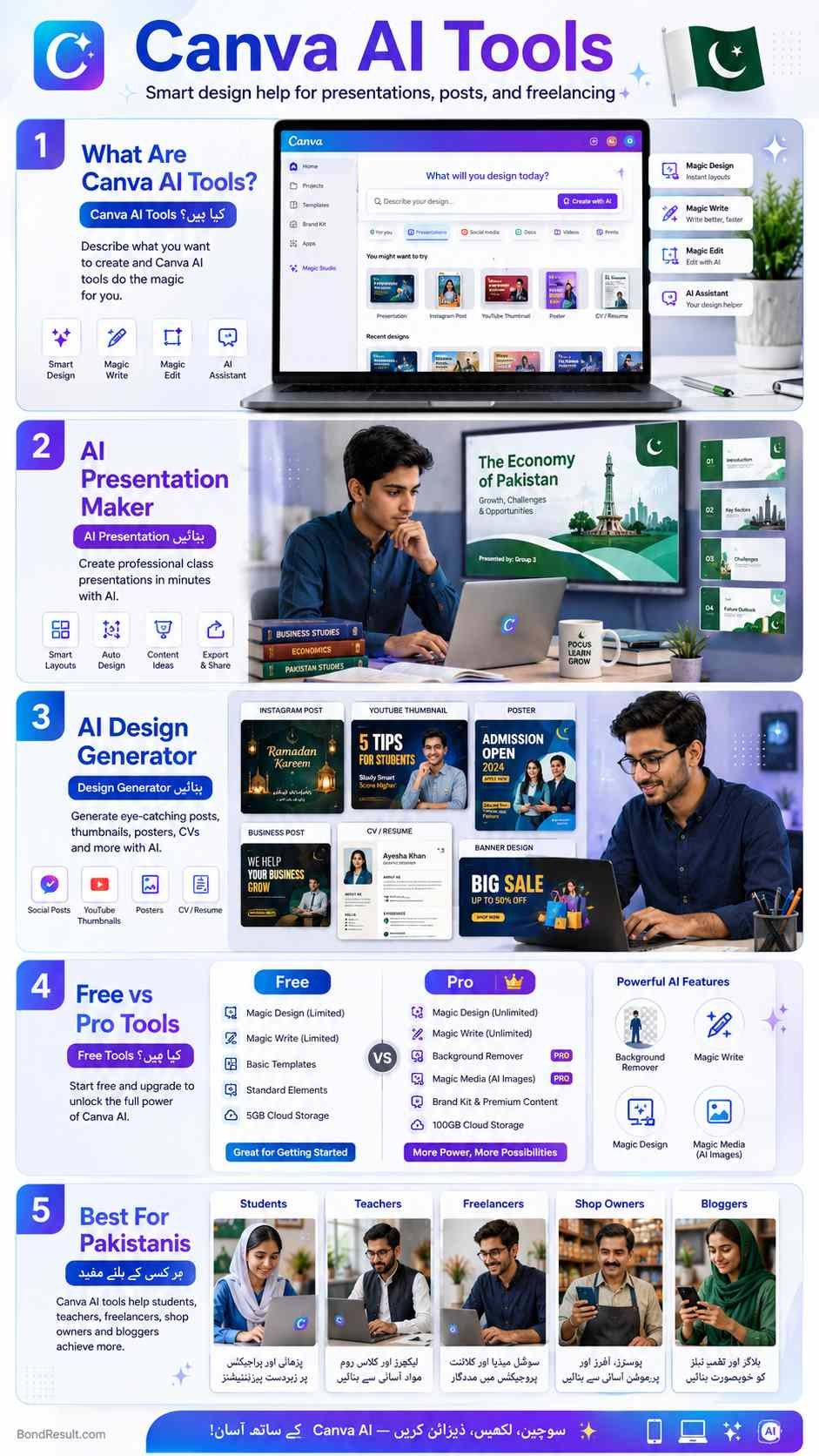
Canva AI Tools are smart features inside Canva that use artificial intelligence to help you create designs, text, images, videos, presentations, and layouts. Instead of doing everything manually, you give Canva a simple prompt, like “make a school presentation about climate change” or “create a Facebook post for a mobile shop sale,” and Canva gives you a ready starting point.
Canva’s AI system is now connected with tools like Canva AI, Magic Studio, Magic Design, Magic Write, Magic Media, Magic Switch, Magic Edit, Magic Eraser, and AI presentation maker. Canva launched Magic Studio as a group of AI-powered features to help people work faster across different parts of design, especially users who do not have professional design skills.
For example, a student in Lahore can use Canva AI presentation to make a class project. A freelancer in Faisalabad can use Canva AI design generator to make quick social media posts for clients. A shopkeeper in Multan can make Eid sale banners. A teacher can prepare worksheets. A YouTuber can make thumbnails. Simple scene hai: you do not need to be a designer first. You just need a clear idea.
Why Canva AI Tools Are Useful in Pakistan
In Pakistan, many people use mobile phones more than laptops. Canva works on web and mobile app, so it is easy for students and small earners. You can create designs even if your English is not perfect. Just write a simple Canva AI prompt, and then edit the result in your own style.
For example, write: “Create a clean Urdu and English poster for a tuition academy admission open in Lahore.” Canva can give you a layout. You can change colors, add your phone number, add fee details, and download the design. This is helpful for people who cannot pay a graphic designer every time.
The real benefit is speed. Before, you had to search templates, arrange text, pick colors, resize images, and fix spacing. Now Canva AI can give you a first draft. It may not be perfect, but it saves time. For beginners, that first draft is often the biggest problem. Once the design appears, editing becomes easy.
Main Canva AI Tools You Should Know
Here’s what matters: do not try every tool on the first day. Learn the most useful ones first. These are the Canva AI tools that most Pakistani users will actually use.
| Canva AI Tool | What It Does | Best For |
|---|---|---|
| Canva AI | Chat-style assistant for design and text | Beginners, students, creators |
| Magic Design | Creates designs from prompt or media | Posters, posts, thumbnails |
| Magic Write | Writes text inside Canva | Captions, ideas, headings |
| Magic Media | Creates images or videos from prompts | Blog images, concept visuals |
| AI Presentation Maker | Makes slides from your topic | Students, teachers, office work |
| Magic Eraser | Removes unwanted objects | Product photos, social media |
| Background Remover | Removes image background | CV photos, product images |
| Magic Switch | Converts design into other formats | Repurposing content |
| Magic Animate | Adds motion effects | Videos, reels, presentations |
| Magic Layers | Turns flat designs into editable layers | Advanced editing |
Canva also says Canva Pro includes premium features and “40+ AI-powered tools,” along with premium templates, fonts, videos, graphics, and other design assets. So the free version is good for learning, but Pro gives more power if you are doing client work.
Canva AI Presentation: Best Tool for Students and Teachers
The Canva AI presentation feature is one of the most useful options for Pakistani students. Suppose your teacher says, “Make a presentation on water pollution,” and you have only one night. Normally, you search Google, copy text, find images, make slides, and then adjust everything. Canva can help you create a first draft faster.
Canva’s AI Presentation Maker uses Magic Design for Presentations to create slides from your prompt and helps you make a first draft that can be edited later. This does not mean you should submit it without checking. Please don’t do that. AI can make mistakes. It can add weak points or generic text. You should always read, correct, and add your own class notes.
A good Canva AI prompt for presentation can be:
“Create a simple 8-slide presentation on air pollution in Pakistan for class 10 students. Use easy English, include causes, effects, solutions, and one final summary slide.”
This type of prompt gives Canva more direction. If you only write “air pollution presentation,” the result may be too general. The better your prompt, the better your slides.
Are Canva AI Tools Free?
Yes, many Canva AI tools can be used for free, but there are limits. Canva clearly says Canva AI is available to everyone, and Free plan users can start with a range of AI-powered tools, while paid plans offer increased usage and more advanced features.
Canva’s pricing page also mentions AI usage limits for the Free and Pro plans. At the time of checking, Canva Free showed limited use of Standard AI and Premium AI tools, while Canva Pro showed higher AI usage limits. These limits can change, so always check Canva’s own pricing page before buying Pro.
For a Pakistani student, free Canva AI tools are enough to learn basics. You can make presentations, social posts, simple designs, and try writing tools. But if you are doing freelancing, running a page, or making daily client content, free limits may finish quickly. Then Canva Pro may be useful.
One honest point: do not buy Pro only because someone on YouTube said “Canva se lakhon kamao.” First learn free tools. Make 20 to 30 sample designs. Try thumbnails, posts, CVs, presentations, and ad creatives. Then decide whether paid plan is worth it for your work.
Is Canva AI as Good as ChatGPT?
This is a common question: Is Canva AI as good as ChatGPT? The simple answer is: both are good, but for different work.
ChatGPT is better for deep writing, research planning, article outlines, explanations, coding help, study notes, and long content ideas. Canva AI is better when you want to turn ideas into designs quickly. Canva works inside the design editor, so it can help with layouts, slides, images, brand colors, posters, videos, and visual content.
For example, if you want a 2000-word article outline, ChatGPT is better. But if you want a YouTube thumbnail, class presentation, Instagram carousel, or business flyer, Canva AI is more practical because it gives you a visual design directly.
Best method? Use both together. First ask ChatGPT for content ideas, headings, captions, or a clear prompt. Then paste that prompt into Canva AI tools and generate your design. This combo is very useful for Pakistani bloggers, students, freelancers, and small business owners.
Canva AI Design Generator: How It Works
The Canva AI design generator helps create designs from text prompts. Canva’s Magic Design tool can auto-generate designs based on your text and media, giving refined templates made for your need.
Let’s say you run a small online clothing page. You can write:
“Create a modern Instagram post for women’s summer lawn sale in Pakistan, with soft pastel colors, 30% discount, WhatsApp order button, and clean Urdu-English text space.”
Canva may give you several design options. You pick one, edit product photos, add your price, and download. That’s it. Is it perfect every time? No. Sometimes the text spacing is not good. Sometimes the image style does not match your brand. But it gives you a strong start.
For bloggers, this is also useful. You can create featured images, infographic layouts, Pinterest pins, and social media graphics. For BondResult.com type content, Canva AI can help make education updates, jobs posts, prize bond draw notices, and scholarship guide images.
Canva AI Prompt: How to Write Better Prompts
A Canva AI prompt is just your instruction. But the clearer your instruction, the better your result. Many beginners write only one or two words like “job poster” or “AI tools.” Then they complain the result is weak. Bhai, Canva is smart, but it cannot read your mind.
Use this simple formula:
Design type + topic + audience + style + colors + text details + size
Example:
“Create a professional 16:9 blog featured image for Canva AI Tools, made for Pakistani students and freelancers. Use blue, purple, white, and soft gradient colors. Show a laptop with Canva design screen, AI icons, presentation slides, social media post previews, and clean modern text space.”
For Urdu-style local posts, you can write:
“Create a Pakistani social media poster in Urdu and English for free AI design tools. Use clean Canva-style layout, bright blue and green colors, laptop, mobile phone, student books, and bold Urdu headline.”
This kind of prompt gives Canva more useful direction. Also remember: after generation, always edit. Replace wrong text. Fix spelling. Add your brand name. Check alignment. AI gives the draft, but final checking is your job.
Canva AI Tools App and Download Options
Many people search Canva AI tools app or Canva AI tools download. Here is the easy explanation. You do not usually download Canva AI tools separately. Canva AI features are inside Canva itself. You can use them on Canva website, desktop app, or mobile app depending on your device and feature availability.
If you are on mobile, install Canva from official app stores only. Do not download random APK files from unknown websites. Many fake “Canva Pro free” apps can harm your phone or steal login details. For Pakistani users, this is important because many people search free mod apps. Please avoid that. Use the official Canva app and official Canva website only.
Also, some AI features may work better on laptop because design editing is easier on a bigger screen. For quick posts, mobile is fine. For serious presentations, client work, and detailed blog images, laptop is better.
Best Canva AI Tools for Pakistani Users
Different people need different tools. A Matric student and a freelancer do not use Canva the same way. Here’s a simple guide.
Students can use Canva AI presentation, Magic Write, poster templates, assignment covers, timetable designs, and study infographics. For example, a student can create a presentation on Quaid-e-Azam, climate change, computer basics, or Pakistan economy.
Freelancers can use Magic Design, Magic Media, Background Remover, Magic Eraser, Magic Switch, and social media templates. They can make samples for Fiverr, Upwork, Facebook pages, and local clients.
Teachers can make worksheets, lesson slides, classroom posters, certificates, and activity sheets. Canva also provides AI guides for education users, including tools like Magic Animate, Magic Grab, and Magic Media for classroom use.
Small business owners can create sale posts, menu cards, product flyers, price lists, banners, and WhatsApp status images. A bakery, mobile shop, academy, salon, clothing page, or home food business can benefit a lot.
Canva AI Tools Free vs Paid: Which One Should You Use?
If you are just starting, use free Canva AI tools first. Learn how to write prompts. Learn how to edit templates. Learn basic color matching. Learn how to export images properly. No need to spend money in the first week.
Canva Free is good for:
- Students making class work
- Beginners learning design
- Small one-time posters
- Simple presentations
- Basic social media graphics
Canva Pro is better for people who need daily content, client work, brand kits, background remover, more templates, premium assets, and higher AI usage. Canva’s official Pro page says paid users get premium design tools, AI-powered features, and access to premium templates, images, videos, graphics, audio, and fonts.
For Pakistan, think practically. If you are earning from design work, Pro may pay for itself. If you only make one school presentation every month, free is enough. Simple.
Can Canva AI Help You Earn Money?
Yes, Canva AI can help you earn, but only if you learn proper design skills too. AI alone is not enough. Many people think they will type one prompt and earn dollars. Real freelancing does not work like that. Clients want clean design, correct size, readable text, brand matching, and fast delivery.
You can offer services like social media posts, YouTube thumbnails, CV design, presentation design, business cards, flyers, certificates, and Instagram carousels. Canva AI can speed up your work, but your taste and editing skills matter more.
For example, if a client asks for a restaurant menu, Canva AI can create a layout. But you must check prices, food categories, spelling, Urdu text, phone number, logo placement, and print size. If you ignore these things, the client will not be happy.
So yes, Canva AI tools can support earning. But treat them as a helper, not a full business by themselves.
Common Mistakes Beginners Make with Canva AI Tools
The first mistake is using weak prompts. The second mistake is trusting AI text without checking. The third mistake is downloading designs with wrong sizes. The fourth mistake is using too many fonts, colors, and effects.
Many Pakistani beginners love adding everything in one image: big headline, 10 icons, 5 colors, 3 photos, red arrow, yellow circle, and then the design looks messy. Canva AI may also create busy designs sometimes. Keep it clean. One main headline. One clear image. One call-to-action. Enough spacing.
Also, always check spelling. AI image tools sometimes create broken text. If you need Urdu, it is better to add Urdu text manually after generating the design. This gives cleaner results.
Is Canva AI Safe for Official Work?
Canva AI is useful, but for official work you should be careful. Do not upload private CNIC scans, bank details, passwords, confidential office documents, or sensitive student records into random templates or AI prompts. Use common sense.
For school projects, business designs, public posts, and general content, it is fine. For legal papers, government forms, official notices, or financial documents, always verify everything manually. AI can help format, but it should not be your final authority.
Also, for copyrighted images, brand logos, and client content, follow proper usage rules. Canva has many free and paid assets, but you should still check licensing terms, especially for commercial projects.
Simple Canva AI Workflow for Beginners
Here is an easy workflow you can follow.
First, decide your goal. Are you making a presentation, post, thumbnail, poster, flyer, or CV? Then write a clear prompt. Add audience, style, colors, and size. Generate the design. Pick the best option. Edit text manually. Add your own images, logo, phone number, and details. Check spelling. Download in the right format.
For social media, PNG is usually fine. For print, PDF Print is better. For presentations, keep slides clean and do not overload text. For blog images, use 16:9 size if your website needs landscape featured images.
This basic workflow works for students, bloggers, teachers, and freelancers. Once you practice, Canva AI feels less confusing.
Canva AI Tools for Pakistani Students and Freelancers
For Pakistani users, Canva AI Tools are not just fancy online features. They can save time, improve school work, support freelancing, and help small businesses look professional. A student can make better slides. A teacher can prepare class material. A freelancer can create client samples. A shop owner can make sale posts. A blogger can make featured images. This is why Canva AI is becoming popular.
But remember one thing: AI is a helper, not a replacement for your own thinking. Always check facts, spelling, layout, and final message. If you use Canva AI with common sense, it can become a very useful daily tool.
FAQs About Canva AI Tools
What are Canva’s AI tools?
Canva’s AI tools are smart features that help you create designs, write text, generate images, make presentations, edit photos, remove backgrounds, and convert content into different formats. Popular tools include Canva AI, Magic Design, Magic Write, Magic Media, Magic Eraser, Magic Switch, and AI Presentation Maker.
Which AI can work in Canva?
Canva has its own built-in AI features under Canva AI and Magic Studio. It also supports different Canva apps and AI-powered tools inside its platform. You do not need to open separate software for many basic design tasks.
Are Canva AI tools free?
Yes, Canva AI tools are available on the Free plan with limited usage. Paid plans like Canva Pro give higher limits and more advanced features. Canva’s official pricing and AI usage pages should be checked because limits can change.
Is Canva AI as good as ChatGPT?
Canva AI is better for design work, presentations, layouts, images, and visual content. ChatGPT is better for deep writing, planning, explanations, and longer text. Best approach is to use ChatGPT for ideas and Canva AI for design.
Can I use Canva AI for presentations?
Yes. Canva AI Presentation Maker can create slide drafts from your prompt. You can then edit the text, images, colors, and layout before submitting or presenting.

Fahad Munir is a senior content writer at BondResult.com covering Prize Bonds, education updates, government employee services and selected public schemes. His guides are prepared using official government, board and university sources.